 Local Photo Restore
Old photo restoration for iPhone & iPad
Bring faded family photos back, without uploading them.
Local Photo Restore sharpens soft, low-resolution pictures with on-device AI, lifts the yellow cast from aging prints, and brings back faded contrast. Compare before and after, then save a new copy. Your original stays untouched.
$3.99 onceNo subscription · no in-app purchases
- No photo uploads
- No account
- Original never overwritten
- iPhone & iPad, iOS 18.2+
Straight answers first
What it fixes, and what it won’t.
Restoration apps love to promise miracles. This one is built for a specific set of problems, and it’s upfront about the rest so you can choose the right tool.
Good at
- Soft or low-resolution photosAI enhancement enlarges up to 4x on your device for clearer edges and texture.
- Yellowed color printsA Remove Yellow Tint slider neutralizes the warm cast that builds up over decades.
- Washed-out, faded picturesRestore Contrast brings back depth and the color that’s still in the photo.
- Checking your workDrag a before/after divider and pinch to zoom before you save.
Not designed for
- Scratches, tears, creases, stainsPhysical damage stays visible. See options for damaged prints.
- Colorizing black-and-whiteB&W photos get clearer, not colorized. Why that matters.
- Rebuilding faces or missing areasNo generative face restoration or scene reconstruction.
- Archival-accurate detailAI enhancement can invent fine texture. Keep the original as the record. Read the limits.
How it works
Three steps, all on your phone.
No sign-up, no upload queue, no credits to count.
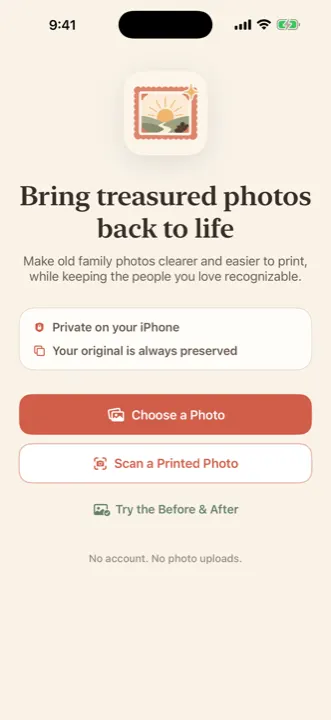
1Pick or scan a photo
Choose a picture from Photos, or photograph a printed snapshot with the camera.
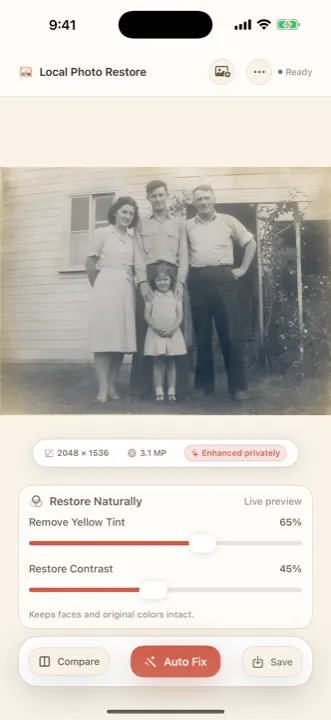
2Enhance and adjust
Enhance for clarity and size, then tap Auto Fix or fine-tune yellow tint and contrast.
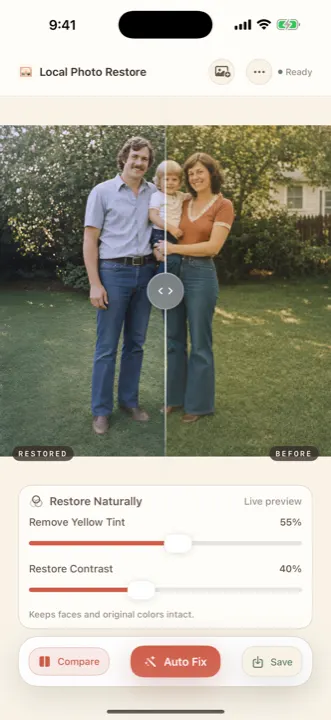
3Compare, then save
Drag the divider, pinch in on faces, and save a new copy to Photos.
Real app output
Before and after, straight from the app.
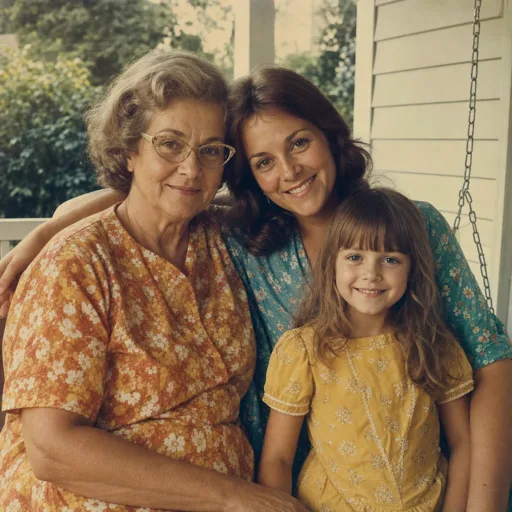
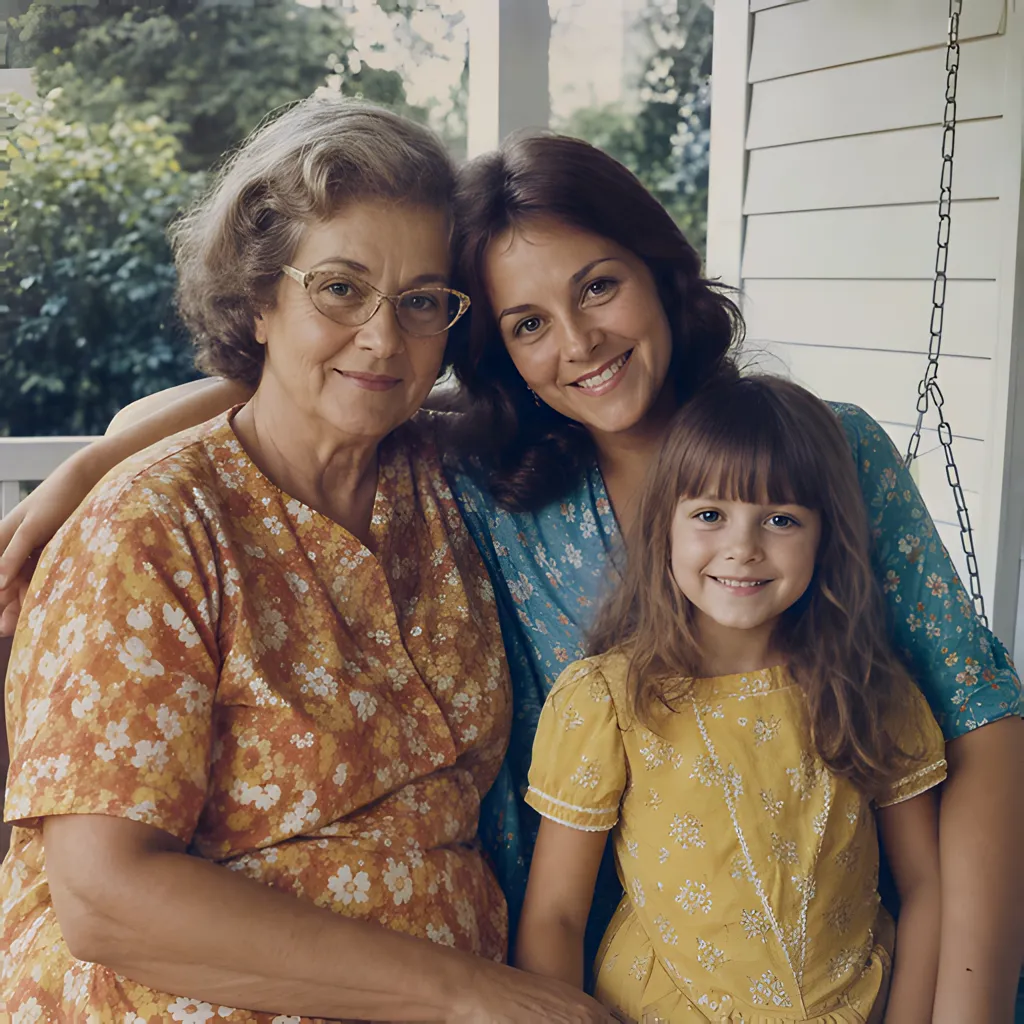
Every “after” below is the app’s own unretouched output, exported from the shipping restoration pipeline. The “before” is shown at the size the app received it.
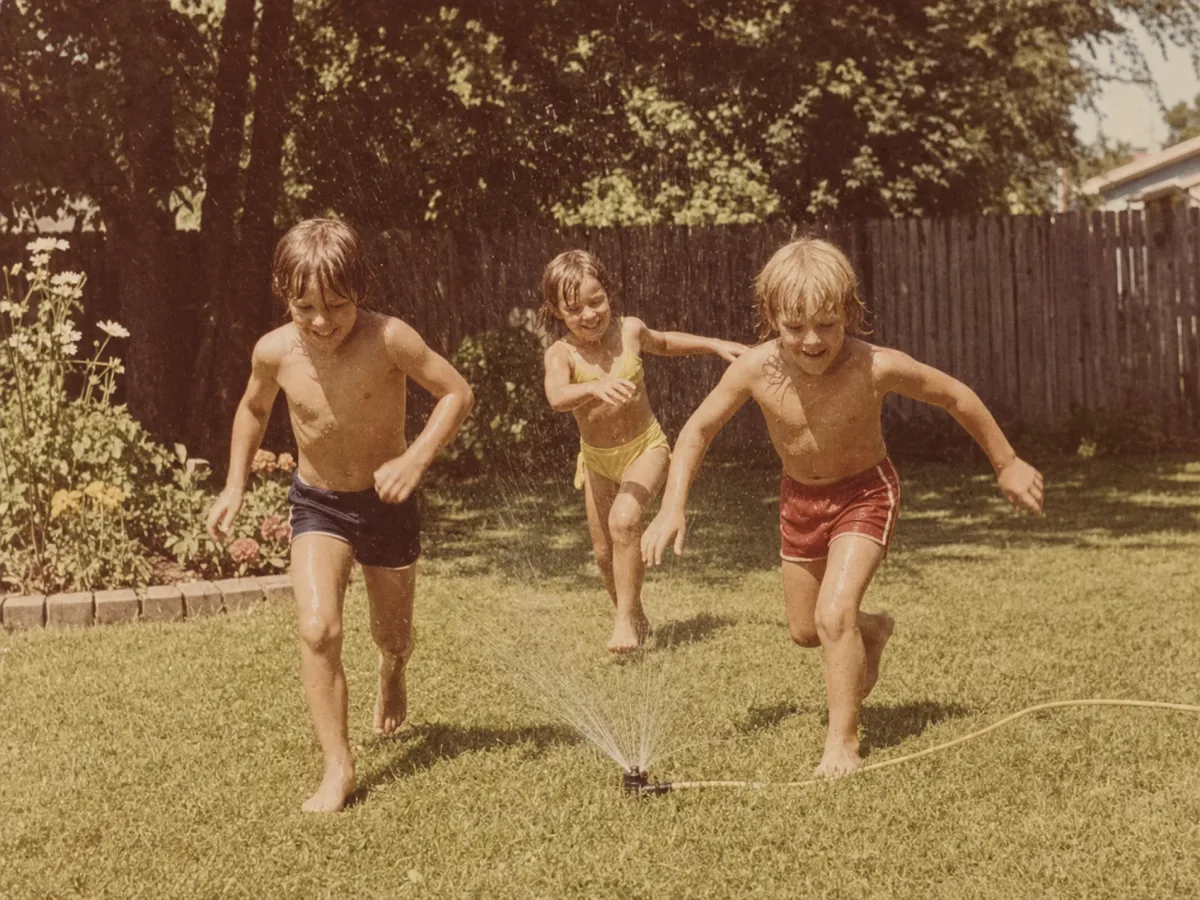
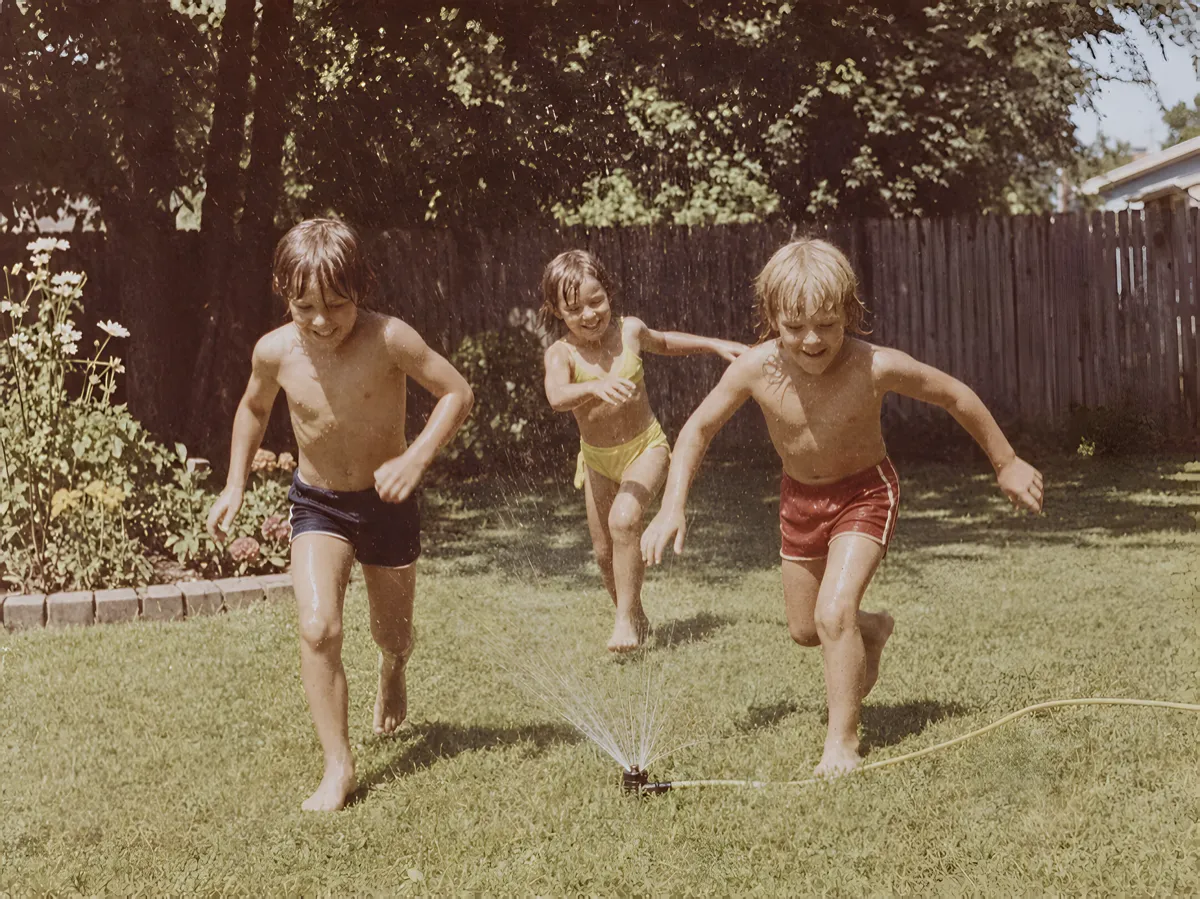
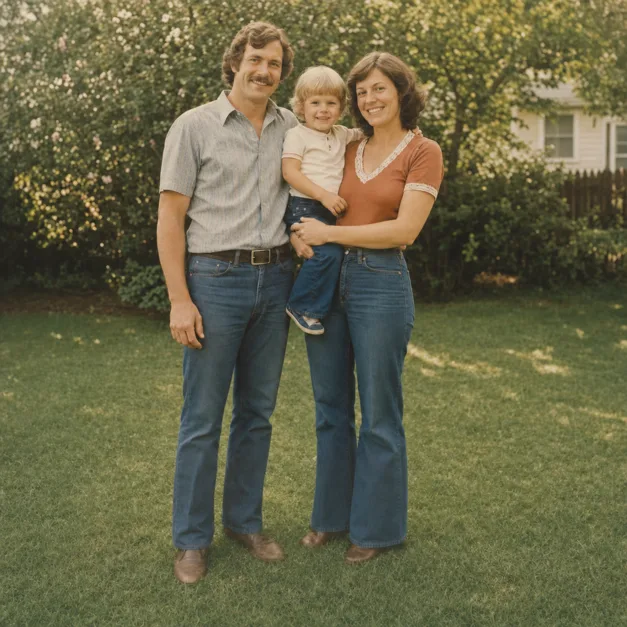
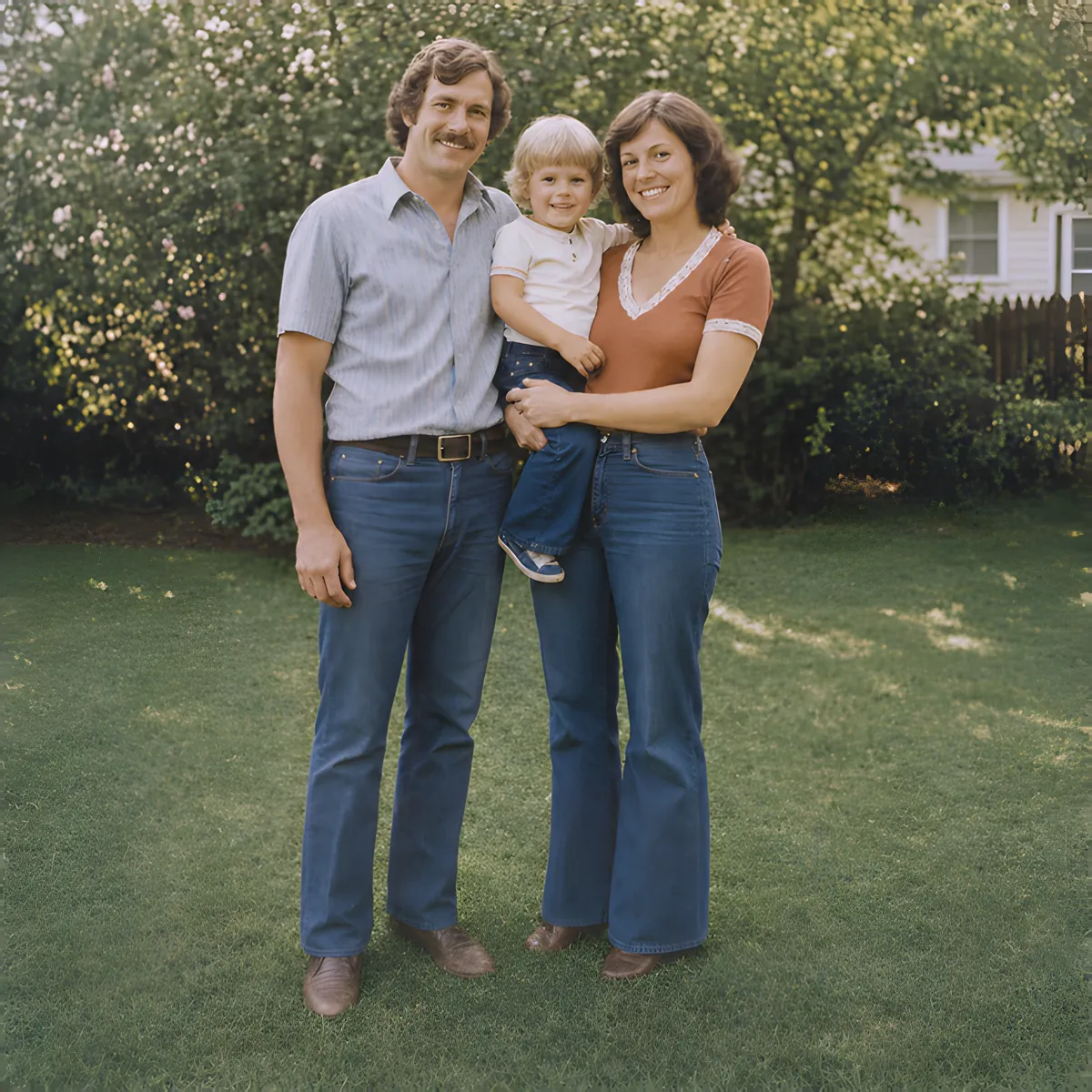
About these examples: the source photos are synthetic test images of fictional people, generated so no real family’s photos are used without consent. They are aged to look like faded prints; none include scratches or tears, because the app doesn’t repair those. Results on your photos depend on the scan or capture you start with.
Private by design
Your family photos stay with your family.
Enhancement runs on your iPhone or iPad with a model built into the app. There is no photo-processing server, no account, and no advertising SDK. The photos you choose and the results you save are not uploaded to the developer or anyone else.
The app uses RevenueCat for purchase reporting and onboarding analytics tied to a random app identifier; photos and edits are never sent. Details are in the privacy policy.
- No uploads. Processing happens on the device in your hand.
- No account. Open the app and choose a photo.
- Original preserved. Saving always creates a new copy in Photos.
- Up to 4x larger. Output is capped near 17 megapixels to fit device memory.
Pricing
Pay once. Restore the whole shoebox.
Many restoration apps charge weekly or per-credit. Local Photo Restore is a paid app: one purchase unlocks every tool with no limits on how many photos you restore.
U.S. App Store
$3.99one time
- Every restoration tool and full-resolution saving
- No subscription, credits, or in-app purchases
- iPhone and iPad (iOS or iPadOS 18.2 or later)
Prices in other countries may differ; the App Store shows your local price before you buy. Checked September 25, 2026.
Choosing a tool
How it compares.
Cloud apps such as Remini and MyHeritage can do things this app can’t, like face reconstruction, scratch repair, and (in MyHeritage) colorization, and they usually charge by subscription. Photoshop can repair real damage by hand. Here’s the short version; the full comparison has current prices and sources.
| Option | Where photos are processed | Scratch & tear repair | Colorize B&W | How you pay |
|---|---|---|---|---|
| Local Photo Restore | On your device | No | No | $3.99 once |
| Remini | Cloud | Claimed (AI repair) | Not listed in the iOS app | Weekly or monthly subscription |
| MyHeritage | Cloud | Yes (Photo Repair) | Yes (In Color) | Annual subscription; a few free photos |
| Adobe Photoshop | Your computer; some AI features use the cloud | Yes, manual and AI-assisted | Yes (Colorize filter) | Monthly subscription |
Summary of features; see the comparison page for plan prices checked September 25, 2026, and sources.
Questions
Before you download.
Does it upload my photos?
No. Enhancement and color adjustments run on your iPhone or iPad. There’s no photo-processing server and no account.
Can it fix scratches, tears, or missing pieces?
No. The app improves clarity, resolution, yellow tint, and faded contrast. It does not repair physical damage or rebuild missing areas. For torn or badly scratched prints, a retouching tool or a professional restorer is the better fit; here are the options.
Will it colorize a black-and-white photo?
No. Black-and-white photos can be made clearer and higher-contrast, but they stay black and white. Colorization guesses at colors that weren’t recorded.
Is it really a one-time price?
Yes. It’s $3.99 in the U.S. App Store with no subscription, credits, or in-app purchases.
Guides
Get a better result from the photo you have.
Capture
How to Photograph Old Prints with Your iPhone
Capture a clearer copy of an old photo: control reflections, keep the phone parallel, check focus, and preserve the original before enhancing.
Read capture →Color
Reduce Yellow Tint and Faded Color in Old Photos
A practical iPhone workflow for yellowed and faded family photos, with checks for skin tones, neutral areas, and faithful color.
Read color →Limits
What AI photo restoration can’t do
AI restoration makes old photos clearer but predicts detail rather than recovering it. Where it helps, where it invents, and how to keep an honest archive.
Read limits →
See what’s still there in an old photo.
Try it on the faded print in the drawer. If the result isn’t better, the original is still exactly where you left it.